Lightbox Viewer
Lightbox Viewer lets you simultaneously visualize changes in shader material settings under different lighting conditions.
- It has been tested to work on Unity 2019, Unity 2022, and Unity 6, and should work on newer versions.
- 🌊 No game-specific SDK is required.
- For Basisprojects, the URP module is required.
Download
The tool is free to download. It can also be downloaded using ALCOM.
Direct download
- GitHub (hai-vr/lightbox-viewer)
ALCOM
- Use this link to install our listing to ALCOM.
- Add Haï ~ Lightbox Viewer to your project using ALCOM.
How to use
Testing materials with Lightbox Viewer
To begin, choose an object, and click the three vertical dots ⋮ next to the Transform component, and select Haï LightboxViewer.
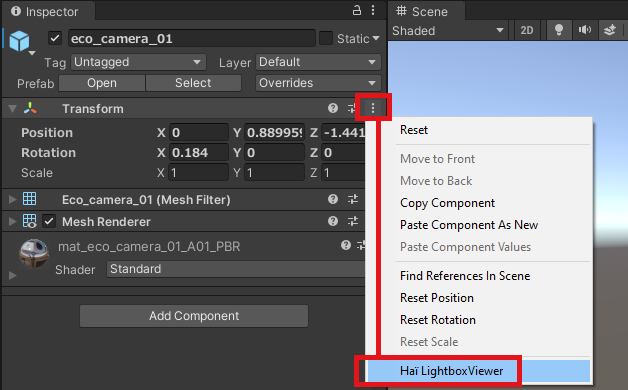
Then, press Activate LightboxViewer. You can now move the scene camera to reframe, move the object around, and do your lighting tests live.
While this mode is active, the editor may slow down. Press Activate LightboxViewer again when not in use to improve the performance of the editor.
Testing in Play mode
Lightbox Viewer can be used in Play mode. Press Activate LightboxViewer before entering Play mode.
If you find success in using my free tools, visit my Patreon to support the creation of these tools.
You'll also get additional tools as Patreon rewards.
Post Processing
If Post Processing is not installed, you can press Install Post-processing. This lets you test color grading, bloom, and other effects.
Use the Post Processing checkbox to turn it on and off.

Lifting small objects off the ground
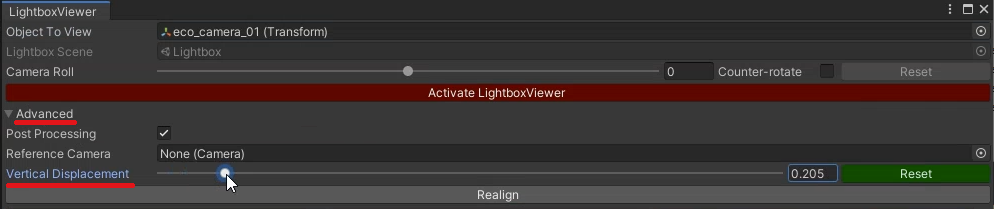
When testing small objects, they may appear inside the ground. Press Advanced, and change the Vertical Displacement slider to lift it off the ground.
Switch between collections of lightboxes
On the left, there is a section named Collections. You may use this to select between different sets of lightboxes to test with.
Advanced usage
Camera roll
Camera Roll lets you roll the camera. This can be used to test how some shaders behave. Specifically, some matcap shaders can look strange in VR when tilting the head sideways.
By default, the Counter-rotate option is enabled, which keeps the preview upright despite the camera rolling.
Press Reset to restore the view upright.
Custom camera settings
If you need to tweak the camera settings (such as MSAA, HDR, ...), you can select a reference camera in Advanced > Reference Camera.
This will use most camera settings including the near and far clip plane. The scene camera continues to control the camera.
Realign after object movement
During operation, you can click Advanced > Realign to center the lightboxes back to your object after it has moved around.
Support Depth Texture
Some shaders like Poiyomi SSAO need a special prefab to operate.
You can enable Advanced > Support Depth Texture to ensure these shader features can operate.
Mute Lights Inside Object
Lights inside your object can interfere with the look of the lightboxes.
If you enable Advanced > Mute Lights Inside Object, the previews will temporarily turn the lights inside your object off for rendering the lightboxes.
Light Volumes
If the Light Volumes package (0.7.2 or above) is installed in the project, the lightboxes will support light volumes.