Reference manual
ComboGestureExpressions is a Unity Editor tool that lets you attach face expressions to hand gestures, and make it react to other Avatars 3.0's features, including Contacts, PhysBones and OSC.
This tool requires
It is bundled with Visual Expressions Editor, an animation editor that lets you create face expressions with the help of previews.
With ComboGestureExpressions:
- PhysBones, Contacts and OSC can be used to blend in face expressions.
- The pressure on your controller triggers can be used to animate your face.
- Attach multiple expressions on a single gesture by switching between different moods using the Expressions Menu.
- Eyes will no longer blink whenever the avatar has a face expression with eyes closed.
- Puppets and blend trees are integrated into the tool.
- Animations triggered by squeezing the controller trigger will look smooth to outside observers.
(Most illustrations in this documentation use Saneko avatar (さねこ) by ひゅうがなつ)
Download
The tool is free to download using ALCOM.
ALCOM
- Use this link to install our listing to ALCOM.
- Add Haï ~ ComboGestureExpressions to your project using ALCOM.
Installation for V1 users
The components used in ComboGestureExpressions V1, V2, and V3 are the same. You will not lose your work.
To install ComboGestureExpressions V2 or V3, ComboGestureExpressions V1 must be removed by hand first if it is installed.
- Delete the
Assets/Hai/ComboGesturefolder. - Delete the
Assets/Hai/ExpressionsEditorfolder.
You can now install ComboGestureExpressions.
Remove the preview dummy in the scene, they are no longer needed.
What's new in V2?
Find out what's new in V2.
Having issues? Join my Discord Server
I will try to provide help on the #combogesture-vrc channel when I can.
Join the Invitational Discord (https://discord.gg/58fWAUTYF8).
Set up the prefab and open the CGE Editor
Add the prefab to the scene located in Project View > Packages/ folder > "Haï ~ ComboGestureExpressions" package -> ComboGestureExpressions.prefab. Right-click on the newly inserted prefab and click Unpack prefab completely.
Select the Default object which contains a Combo Gesture Activity component, then click the Open editor button in the Inspector to open the CGE Editor.
If you are using ComboGestureExpressions V2, the prefab is in Assets/Hai/ComboGesture/ComboGestureExpressions.prefab.
If you are using ComboGestureExpressions V3, the prefab is now part of the Packages/ folder instead of Assets/:
- Project View >
Packages/folder > "Haï ~ ComboGestureExpressions" package ->ComboGestureExpressions.prefab
Visualize your animation files and preview using AnimationViewer
Select your avatar which contains your Animator.
In the Animator component, click the vertical dots on the right ⋮ and click Haï AnimationViewer. You can now see previews of your animations inside your Project view. Move your scene camera to better see your avatar.
This can cost a little bit of performance, so click the Activate Viewer button to toggle it on and off.
For more information, see AnimationViewer manual
Create a new set of face expressions
To assign animations with hand gestures, Drag and drop animation clips from your Project view to the slots in CGE Editor.
To make the CGE Editor display the previews, drag and drop your avatar to the Preview setup field at the top.Fill the first row completely. The first row contains the animations that play when one hand is doing a gesture, but the other hand is doing a gesture that doesn't exist (i.e. the 🤙 sign).
Then, you can click the Auto-set button in the diagonal. The diagonal contains the animations that play when both hands are doing the same hand gesture. Feel free to choose another animation.
The empty slots in-between will be filled later in this manual, by using a tool to combine animations.
Gesture names for reference (VRChat documentation):
- No gesture / None: 🤙 (Neutral in VRChat docs)
- Fist: ✊
- Open: ✋ (HandOpen in VRChat docs)
- Point: ☝️ (FingerPoint in VRChat docs)
- Victory: ✌️
- RockNRoll: 🤘
- Gun: 🎯👈 (HandGun in VRChat docs)
- ThumbsUp: 👍
- ...on both hands / x2: 🙌
Edit or create animations with Visual Expressions Editor
If you need to create a new face expression animation, click the Create button, or click the Visual Expressions Editor button on the top right.
Another way to open this editor is to go in the Animator component, then click the vertical dots on the right ⋮ and click Haï VisualExpressionsEditor. Move your scene camera to better see your avatar.
For more information, head over to the Visual Expressions Editor documentation.
Combining hands
When your left hand and right hand are not making the same gesture, the animation in the corresponding slot will play.
You can choose your own animation, or use a tool to combine the corresponding animations from the left and right hand by clicking the + Combine button.
When combining, you will see a preview of the two animations mixed together. It is very common for the mixed animation to be conflicting, especially when two animations animate the eyes or the mouth in a different way.
Click the buttons on either side to turn some properties on and off, until you find a face expression that makes sense for that combination of gesture. When satisfied with the result, click Save and assign in the middle.
You can choose to rename the animation using the field above the button.
It is highly recommended to fill out all slots.
Do not blink when eyes are closed
Go to Prevent eyes blinking tab. By selecting which animations have both eyes closed, the blinking animation will be disabled as long as that face expression is active.
It is not recommended selecting animations with only one eye closed such as winking, as this will also cause the avatar to stop eye contact.
In your animations, you should not animate the Blink blendshape which is used by the Avatars 3.0 descriptor. If you do, your eyelids will not smoothly animate, and they will not animate on analog Fist gestures.
On many avatar bases, the left eyelid and right eyelid can be animated independently. I would suggest you to animate those two blendshapes instead.
Apply to the avatar
Select the Avatar Descriptor
Select the ComboGestureExpressions object of the prefab which contains a Combo Gesture Compiler component. In the inspector:
- Drag and drop your avatar in the
Avatar descriptorslot. The avatar will not be modified, this is only required to read the default animation values of the avatar, and also read the blink blendshapes in the Avatar Descriptor.
Select the animator controller
The instructions will be different if you already use VRCFury, Modular Avatar, or neither of them.
Choose the one that fits you:
With a traditional workflow
- If you do not use VRCFury nor Modular Avatar:
- Drag and drop your FX playable layer animator to the
FX Animator Controllerslot. This asset will be modified: New layers and parameters will be added when synchronizing animations. I recommend you to make backups of that FX Animator Controller!
- Drag and drop your FX playable layer animator to the
With VRCFury or Modular Avatar (non-destructive workflow)
- If you use VRCFury or Modular Avatar, and you want to preserve your existing FX layer:
- Create a new Animator Controller asset.
- Drag and drop that new Animator Controller asset to the
FX Animator Controllerslot. - If you have both VRCFury and Modular Avatar in your project, choose only one of the two below choices based on your preference.
- If you use VRCFury, add a VRCFury Full Controller on your avatar that references that new Animator Controller asset.
- If you use Modular Avatar, add a Modular Avatar Merge Animator on your avatar that references that new Animator Controller asset.
- Define the Modular Avatar Merge Animator component to use Absolute paths.
Synchronize
Depending on how your animator is built, choose the correct setting in FX Playable Mode: Choose Write Defaults OFF if you are following VRChat recommendations. Try to be consistent throughout your animator.
You should now be able to press Synchronize Animator FX layers, which will modify your animator controller.
Whenever you modify any face expression animation or anything related to ComboGestureExpressions, press that button again to synchronize.
If you haven't done it already, right-click on the newly created prefab and click Unpack prefab completely.
Squeezing the trigger
In VRChat, to play the hand animations, make a fist with your hand, and squeeze the trigger. The animation will be blended in the more you press the trigger.
The gesture of the other hand is used as the base animation. For example, if you are making Point + Fist gesture:
- The
Point + Fistanimation will be used when the trigger is squeezed. - The
Pointanimation will be used when the trigger is not squeezed.
When both hands of your hand are making a fist, you can select two additional animations to play:
- The
Fist X2animation will be used when both triggers are squeezed. - The
Fist X2, LEFT triggeranimation will be used when the left trigger is squeezed. - The
Fist X2, RIGHT triggeranimation will be used when the right trigger is squeezed. - The
No gestureanimation will be used when none of the triggers are squeezed.
Illustration of animation blending in an Analog Fist gesture.
In your animations, you should not animate the Blink blendshape which is used by the Avatars 3.0 descriptor. They will not animate on analog Fist gestures.
On many avatar bases, the left eyelid and right eyelid can be animated independently. I would suggest you to animate those two blendshapes instead.
Add some Dynamics using PhysBones, Contacts, OSC, and other Avatars 3.0 parameters
To make your face expression react to interactions and other Dynamics, add the prefab to the scene located in Project View > Packages/ folder > "Haï ~ ComboGestureExpressions" package -> CGEDynamics.prefab. Right-click on the newly inserted prefab and click Unpack prefab completely.
If you are using ComboGestureExpressions V2, the prefab is in Assets/Hai/ComboGesture/CGEDynamics.prefab.
If you are using ComboGestureExpressions V3, the prefab is now part of the Packages/ folder instead of Assets/:
- Project View >
Packages/folder > "Haï ~ ComboGestureExpressions" package ->CGEDynamics.prefab
This component lets you define Dynamics. Press the + button to add a new element in the list.
In the Compiler, define your Main Dynamics object above the Mood sets.
You can individually define Dynamics objects in each Mood set, which will only apply it to that Mood set. Make sure you don't have duplicate inside your Main Dynamics object!
Illustration of a Dynamics contact.
Select the Dynamic Expression
Select the effect. It can be either a Clip or a Mood set.
After choosing a clip, check the box if both eyes are closed.
For more information about Mood sets, see the Mood sets section later in the manual.
Using a PhysBone as the Dynamic Condition
To use a PhysBone:
- Configure your PhysBone to have a parameter (see VRChat documentation)
- Define the Source to be PhysBone
- Define the PhysBone object
- Define the Physbone Source to be either Stretch, Angle, or IsGrabbed
The animation will behave differently depending on the PhysBone source:
- If it's Stretch (which is a Float value), the animation will be blended in by how much it is stretched. It is strongest when fully stretched.
- You can change the Upper bound value to a lower value to make it strongest before being fully stretched. A value of 0.75 would make the animation strongest when the Contact is 75% stretched.
- If it's Angle (which is a Float value), the animation will be blended in by how much the bone is away from the rest position. It is strongest when angled at 180 degrees away from the rest position.
- You can change the Upper bound value to a lower value to make it strongest at an angle smaller than 180 degrees. A value of 0.75 would make the animation strongest when the angle is 135 degrees (0.75 * 180deg).
- If it's IsGrabbed, the animation will play when the PhysBone is grabbed.
Behavior with multiple Dynamic Expressions
The order of Dynamics in this list matters: When two or more Dynamic Conditions are active, the one which is higher in the list has priority.
Using a Contact as the Dynamic Condition
To use a Contact Receiver:
- Configure your Contact Receiver (see VRChat documentation)
- Define the Source to be Contact
- Define the Contact Receiver object
The animation will behave differently depending on the kind of Contact Receiver:
- If it's Proximity (which is a Float value), the animation will be blended in by the Proximity amount. It is strongest when fully colliding.
- You can change the Upper bound value to a lower value to make it strongest before fully colliding. A value of 0.75 would make the animation strongest when the Contact is 75% colliding.
- If it's Constant, the animation will play when the Contact being collided with.
- If it's OnEnter, the animation will play for a specified duration the moment the Contact is entered above the velocity. Additional options will show up:
- Set the animation duration.
- If necessary, tweak the curve. The animation will be blended by this curve over the animation duration. Here are some examples of how to use it:
- By default, the curve is shaped in a way that makes the animation blend almost instantly and smoothly fade over time:

- You can change the shape of the curve to make your animation last longer at full strength before blending out:

- You can also set the curve not to be at full strength to retain influence from your Mood set face expressions.

- By default, the curve is shaped in a way that makes the animation blend almost instantly and smoothly fade over time:
- Tweak the enter transition duration of the expression.
- Note: As of version V2.0.0, due to a limitation, you can only have one curve per Contact of type OnEnter. In addition, Dynamic Expressions priorities work slightly differently as a lower priority OnEnter Contact may be able to take over a high priority OnEnter Contact. This may change in future versions.
Using OSC or Avatars 3.0 parameter as the Dynamic Condition
To use an OSC or Avatars 3.0 parameter as the Dynamic Condition:
- Add the parameter in your avatar Expressions Parameters, if it's not a built-in Avatars 3.0 parameter.
- Define the Parameter Name
- Choose your Parameter type
The animation will behave differently depending on the Parameter type:
- If it's a Float, the animation will be blended in the closer the value gets to 1.
- If it's a Bool or Int, the animation will play when the Bool is true or when the Int value is strictly above 0.
- If you check Behaves like OnEnter, the animation will behave as if this parameter was a Contact of type OnEnter.
Other options
Dynamics condition with a parameter of type Int, Bool will not blend in.
If it's a Float, it will blend in unless the Hard Threshold option is checked, in which case it will behave like a Bool.
In all of these cases, the dynamic element will be active when the threshold is passed.
For a boolean, IsAboveThreshold means the element is active when it's true.
Using multiple mood sets
(A longer tutorial with audio commentary is available)
Earlier, you set up face expressions within Default object of the prefab. This is the default mood set of face expressions of your avatar that is active after loading. However, you can have any number of mood sets and switch between them using the menu to increase the number of face expressions depending on the situation.
The prefab contains another object called Smiling as an example, which contains a separate Combo Gesture Activity component. Select that object and rename it; It is up to you to organize the mood sets the way you want it (Smiling, Sad, Eccentric, Drunk, Romantic, ...) and it does not necessarily have to be moods (Sign Language, One-handed, Conversation, Dancing, ...)
Select the ComboGestureExpressions object of the prefab. In the inspector, set a Parameter Name to that new mood set, leaving the first one blank. The blank mood set will be the default mood set that is active when you load your avatar for the first time, or when you deselect a mood set.
In your Expression Parameters, add a new Parameter of type Bool.
In your Expression Menu, create a Toggle to control that Parameter.
Add additional mood sets by clicking + on the list, then drag-and-drop or select another ComboGestureActivity component. Just like the second one, choose another Parameter Name for that mood set, create an Expression Parameter and a Expression Menu toggle.
It is not necessary, you can optionally add a Parameter Name to the blank mood set. In that case, the first mood set in the list will be default mood set. This will allow you to add a toggle control to the default mood set in order to have an icon for it.
Standalone puppets and blend trees
(A longer tutorial with audio commentary is available)
So far we have set up Activity mood sets. Another type of mood set is available: Puppet, which can be controlled by an Expression Menu.
The prefab contains an object called Puppet which contains a Combo Gesture Puppet component. Select it and click the Open editor button in the Inspector.
To make the CGE Editor display the previews, drag and drop your avatar to the Preview setup field at the top.Create a blend tree using the tool. Select one of the following basic templates: Four directions, Eight directions, Six directions pointing forward, Six directions pointing sideways.
In Joystick center animation, add an animation that will be used when the joystick of the puppet menu is resting at the center. Click Create a new blend tree asset to select a location where to save that blend tree.
There are two additional options when generating the blend tree that should be left at their default values:
- Fix joystick snapping creates 4 additional animations for the resting pose near the center. This is because joystick of VR controllers have a dead zone in the middle. This means the animation will snap when exiting that dead zone.
- Joystick maximum tilt brings the outer animation points slightly closer to the middle. This is because joystick of VR controllers can not always be tilted all the way in every direction. This can also be used to avoid tilting the joystick all the way.
After generating the blend tree, edit it in the inspector to assign the face expressions in it. After it is done, select which face expressions have eyes closed by going to Prevent eyes blinking tab.
Select the ComboGestureExpressions object of the prefab. In the inspector, add a mood set by clicking + on the list. On the left in the dropdown menu, switch from Activity to Puppet, then drag-and-drop or select the Puppet object. Just like Activity mood sets, you can create more Puppet mood sets by creating additional ComboGesturePuppet components.
I recommend creating two controls in your Expression Menu to control the puppet: A Toggle control to switch to the Puppet mood set, and separate Two-Axis Puppet to control the two parameters of your blend tree.
Illustration of a puppet mood set.
Animate cat ears, wings and more
In ComboGestureExpressions V3, if you want to animate ears, wings, tails, or other transform animations, animate those in the same animations as the one you use for your face expressions.
If you're familiar with ComboGestureExpressions V2:
The Gesture Playable Layer is no longer used. You can check "Clean up old layers" to instruct the tool to clear old Gesture layers when synchronizing. This only needs to be done once.
If you still use ComboGestureExpressions V2, the section has moved to its own documentation page.
Permutations
(A longer tutorial with audio commentary is available)
For simplicity purposes, we've been using combinations of gestures, meaning that Left Point + Right ThumbsUp will show the same animation as Left ThumbsUp + Right Point. I encourage you using multiple mood sets available in an Expressions menu to expand your expressions repertoire.
If you would like to create permutations of gestures, which I do recommend for asymmetric face expressions or hand-specific Fist animations, change the Mode dropdown at the top left and select Permutations. You will see a colored table split between Left hand permutations (colored in orange) and Right hand permutations (colored in blue).
When this mode is selected in the dropdown, the Activity will behave as if everything was still a combo: If you don't define a Left hand permutation, the Right hand permutation animation will be used for both.
Mix puppets and gestures
(A longer tutorial with audio commentary is available)
Any animation slot can have a blend tree within it instead. This means puppeteering is possible for specific combos of hand gestures.
Analog Fist gesture can be completely customized using it, and it is even possible to simultaneously combine the Fist analog trigger with a puppet menu if you feel like it. Remember puppets retain their values when closing the menu, so you don't necessarily need to have your puppet menu opened.
The blend tree template generator can be accessed in Additional editors > Create blend trees tab. For puppet menus, use the previously mentioned templates. For Fist gestures, select one of the following templates: Single analog fist with hair trigger, Single analog fist and two directions, Dual analog fist.
When placing a blend tree in a single Fist gesture, the parameter _AutoGestureWeight will be how much the trigger is squeezed.
When placing a blend tree in the Fist x2 slot, the parameters GestureLeftWeight and GestureRightWeight will be how much the left and right triggers are squeezed respectively.
MMD worlds compatibility option
MMD worlds are particular in regards to face expressions. If you are a regular user of MMD worlds and need your avatar to be compatible, the avatar needs to be set up in a specific way in order to get face expressions working. If you don't use MMD worlds, don't bother with this!.
For MMD worlds specifically, using Write Defaults ON is recommended.
In the Compiler at the bottom, define the field called MMD compatibility toggle parameter. Create an Expressions Menu toggling that parameter.
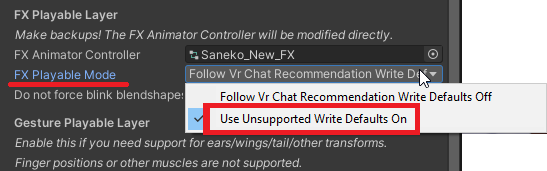
In the FX Playable Layer settings, set the FX Playable Mode to Use Write Defaults On. Do the same for the Gesture Playable Layer if you have one.
When the parameter is active, the face expressions of your avatar will stop playing whenever your avatar is in a chair or a station. Stations are what MMD worlds use to play animations on the avatar.
It is possible to use Write Defaults OFF with a big caveat: you won't be able to use the FX layer, therefore no toggles or other avatar gimmicks. CGE's MMD worlds compatibility will not be able to help you with this.
Disable blinking prevention when using eye tracking
This functionality is currently in public Beta.
If you use an eye tracking hardware device on your HMD, you can choose to turn off ComboGestureExpressions' eyes blinking prevention feature when eye tracking is enabled. If you don't use an eye tracking hardware device on your HMD, don't bother with this!.
In the Compiler at the bottom:
- If you use Jerry's Face Tracking Adjerry91/VRCFaceTracking-Templates:
- Define the field called Eye tracking enabled parameter to be
EyeTrackingActive - Keep the Eye tracking parameter type to be Modern.
- Define the field called Eye tracking enabled parameter to be
- If you use another eye tracking template or system:
- Define the field called Eye tracking enabled parameter to be a parameter of your eye tracking that is enabled when your eye tracking device is enabled.
- Set the Eye tracking parameter type to be:
- Modern if that eye tracking system uses special blend trees, where the parameter is defined as a float within the animator. This is the most likely option if you use a modern eye tracking animator system.
- Legacy Bool if that eye tracking system uses a boolean within the animator as the toggle.
Learn more
- Corrections - Learn about the various techniques used to fix animations.
- Integrator - Documentation about the Integrator, a module to add Weight Corrections without using ComboGestureExpressions.
- Write Defaults - Explanation of how the Avatar Mask is built.
Most illustrations in this documentation use Saneko avatar (さねこ) by ひゅうがなつ