Blendshape Viewer
全平台
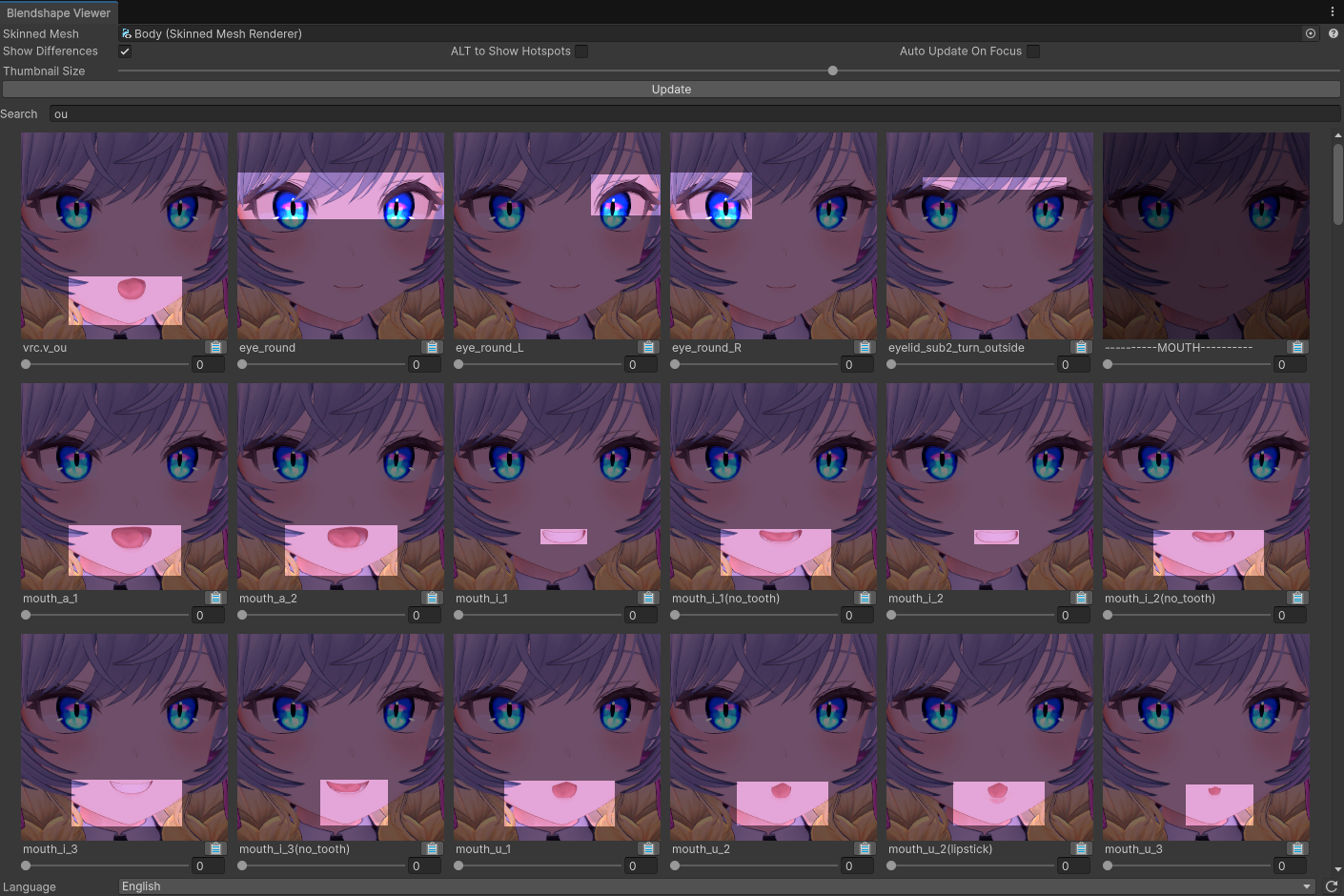
Blendshape Viewer 讓您可以直觀地查看模型中受 blendshape 影響的區域,以便您可以調整它們的值。
兼容性說明
- 已在 Unity 2022 和 Unity 6.4 上測試通過,也應適用於更高版本。
- 🌊 不需要特定於遊戲的 SDK。
- 如果您使用的 Unity 版本低於 2022,則必須使用 2.1.2 版本。
下載
此工具可以在 Booth.pm 上下載:
它也可以通過 ALCOM 安裝:
- 使用此連結 將我們的列表安裝到 ALCOM。
- 使用 ALCOM 將 Haï ~ Blendshape Viewer 新增到您的專案中。
Your support makes this free tool possible
Thanks to my Patreon supporters for making tool creation sustainable ⭐
If you find success in using my free tools, visit my Patreon to support the creation of these tools.
You'll also get additional tools as Patreon rewards.
If you find success in using my free tools, visit my Patreon to support the creation of these tools.
You'll also get additional tools as Patreon rewards.
如何使用
選擇要預覽的物件
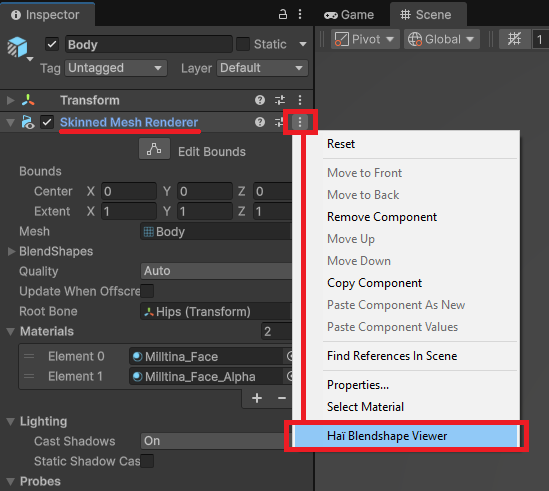
選擇您想要預覽的 SkinnedMeshRenderer。在檢查器 (Inspector) 中,按一下三個點,然後選擇「Haï Blendshape Viewer」。
將場景視圖與網格對齊
使用 Scene 選項卡環顧四周以對焦您的網格,然後按 更新 以重新整理縮略圖。縮略圖使用與場景視圖相同的相機設定。
如果您希望縮略圖更大,請更改 縮略圖大小 滑桿,然後再次按 更新 按鈕。
提示
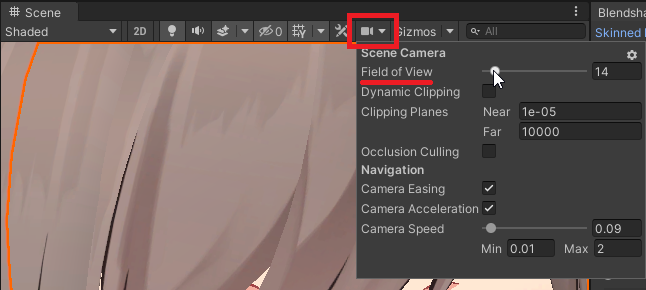
為了獲得更好的效果,請記住您可以更改 Scene 相機的視野 (field of view)。
識別哪個 blendshape 影響哪個區域
預設情況下,縮略圖將顯示差異。如果您不希望這樣,請取消選取 顯示差異。
將光標置於 Blendshape Viewer 視窗內時,按 ALT 鍵可以顯示未應用 blendshape 的原圖。
ALT 鍵的功能可以透過右上角的下拉選單進行更改:
- 要在按住 ALT 鍵時顯示原圖,請選擇 ALT 顯示原圖。
- 要在按住 ALT 键時以黄色高亮显示差異,請選擇 ALT 顯示熱點。
- 選擇 默認顯示熱點 以黃色高亮顯示差異;此時按住 ALT 鍵將顯示常規區域。
- 要禁用 ALT 鍵的功能,請選擇 ALT 不執行任何操作。
搜尋 blendshape
在 搜尋 欄中輸入內容,按 blendshape 名稱過濾結果。
您可以用空格分隔搜尋詞。搜尋查詢 eye down 可以找到類似 eye_lookdown 的結果。
搜尋 欄位右側標有 僅顯示非零值 的按鈕是一個過濾器,它將僅顯示值不為零的混合形狀(blendshape)。
複製 blendshape 名稱
按一下 剪貼簿圖示 即可複製 blendshape 名稱。
或者,您也可以選擇包含 blendshape 名稱的文字。
更改 blendshape 的值
每個 blendshape 下方的滑桿將修改場景中該 blendshape 的值。
這也可以在錄製動畫時使用。
特別鳴謝
- 感謝 Pema 提供的 Compute Shader!