Advanced
- このページは日本語でご覧いただけます: 日本語
Create your own lightbox scene
Lightbox Viewer is shipped with some default lightboxes that you can test your content with.
These lightboxes are contained in a scene called Lightbox.unity. You can select a different lightbox scene by creating one, or importing one created by someone else.
How it works
A lightbox scene is just a series of meshes put side by side with different lighting settings and post-processing settings.
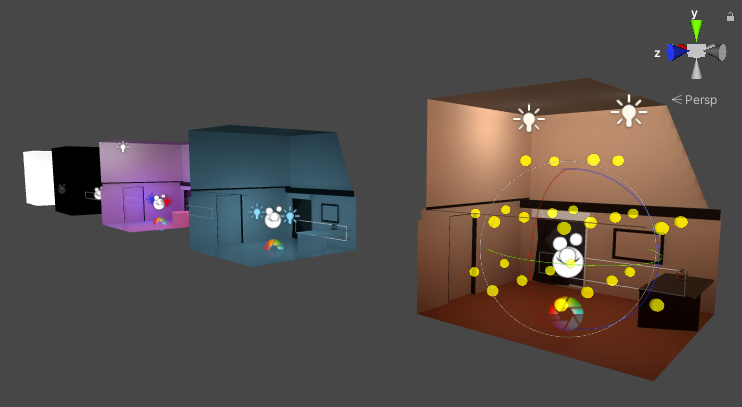
In a lightbox scene, each lightbox is defined in an object in the root called Lightboxes. The position and rotation of the lightbox is used to determine where to place the object inside that lightbox.

Each lightbox can contain objects that are only enabled when taking a picture of that lightbox.
In particular, this affects real-time lights and post-processing settings. By putting these objects inside a lightbox, you can ensure that they are only enabled when taking a picture of that lightbox.
You don't need to put meshes, light probes, or reflection probes inside the Lightboxes hierarchy, but you can. The default lightbox scene has all the meshes and baked data defined outside the Lightboxes hierarchy.
When creating a lightbox scene, the same discipline as creating a world applies:
- Set your world meshes static Contribute GI and Reflection Probe Static.
- Make sure your world meshes has lightmaps UVs.
- Mark your lights as Baked, unless you want to test for real time lighting.
- Place reflection probes and light probes.
- Bake your scene lighting and reflection probes.
Full mode of operation
When activating LightboxViewer, the following happens:
- The lightbox scene is loaded as an additive scene on top of the current scene.
- Light probes are re-applied (tetrahedralized).
When capturing lightboxes, the following happens:
- If there is a reference camera in the Advanced settings, this camera is temporarily copied, otherwise a new one is temporarily created.
- The camera copies the scene camera settings.
- If there is a camera in the Advanced settings, the near and far clip plane are copied from that reference camera.
- If not, the camera copies the near and far clip plane of the scene camera.
- All light sources in the scene are temporarily disabled, except those in the lightbox scene.
- All reflection probes in the scene are temporarily disabled, except those in the lightbox scene.
- All children of the object called
Lightboxesin the lightbox scene are disabled.
Each child of the object called Lightboxes generates a picture:
- That child lightbox is enabled. This effectively enables anything inside of it that can influence the render, such as real time lights or post-processing volumes.
- The object to be viewed is moved to that lightbox.
- The camera takes a picture.
- That child is disabled again.
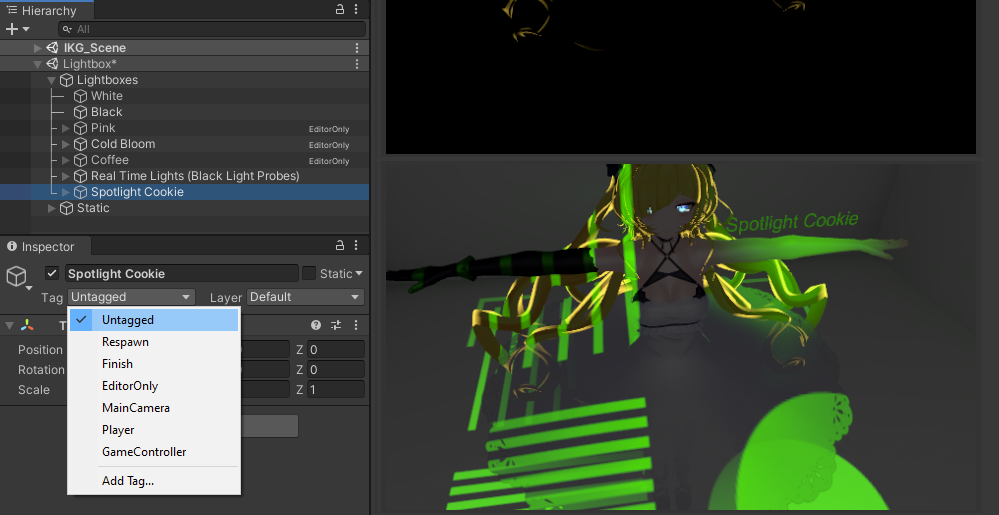
If the child is tagged as EditorOnly, it will not be used.
Other
Disable a lightbox
After pressing Activate LightboxViewer, the lightbox scene will show up in at the bottom of the hierarchy.
Expand the Lightboxes object. If you tag one of them as EditorOnly, the lightbox will no longer show up.
Enable a lightbox
Likewise, a lightbox can be enabled by marking it as Untagged. The default lightbox scene contains a hidden lightbox called Spotlight Cookie that you can enable this way.